

Almost every phone and camera now records high-quality video, but raw clips rarely tell the story on their own. Trimming the dull moments, joining scenes in the right order, and adding titles or music turns a folder of clips into a video people actually enjoy watching. That is exactly the job VideoPad was built for. Developed by NCH Software, it is a video editing program designed for beginners and home users who want a clean, timeline-based editor without a steep learning curve. This guide explains what the program is, its key features, how an editing session flows, and how to get started.
What Is VideoPad?
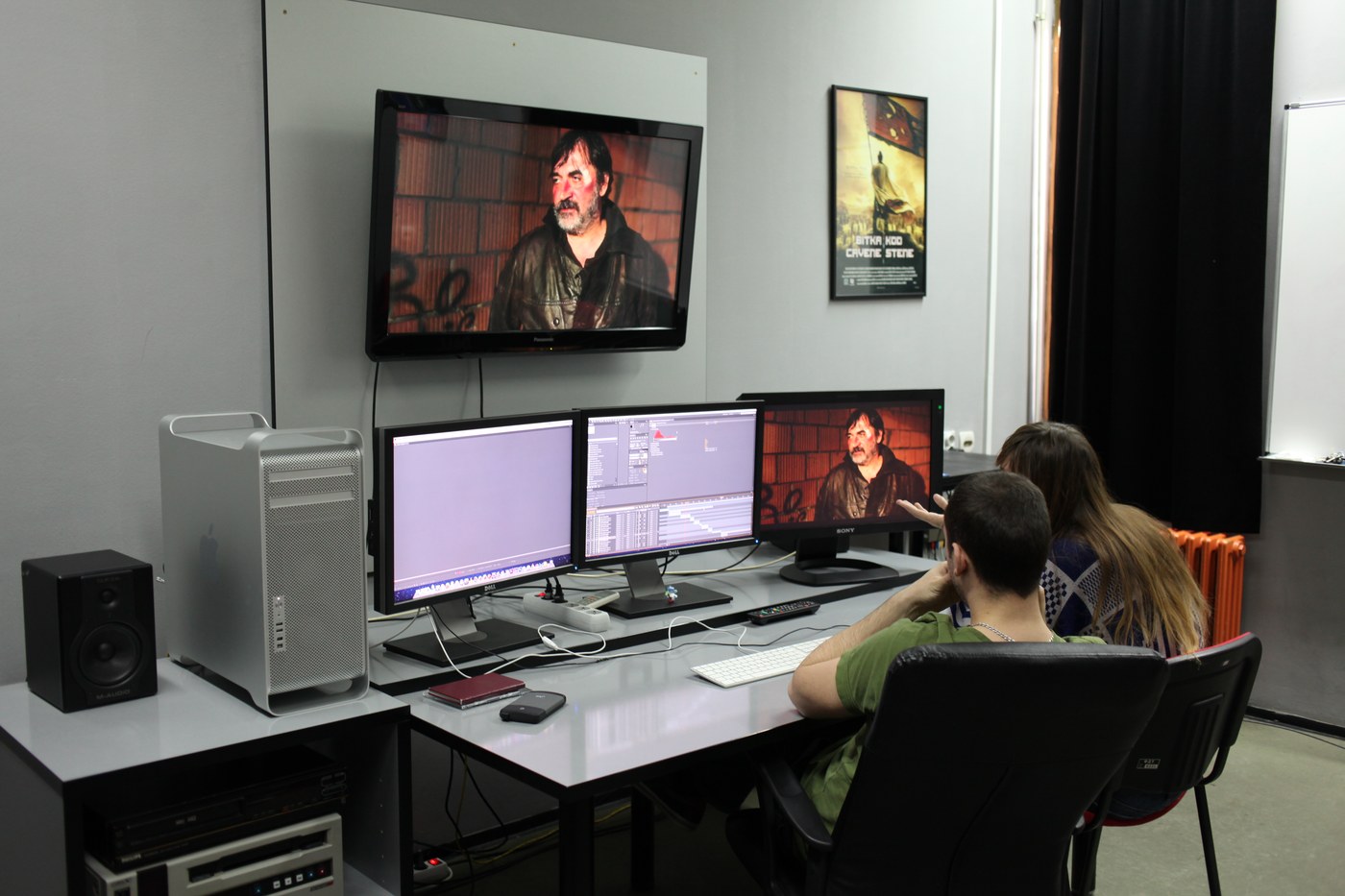
VideoPad is a desktop video editor, available for Windows and Mac, that lets you assemble video clips, photos, and audio on a visual timeline. You simply drag media onto tracks, cut it to length, and arrange it in the order you want — no complicated menus to learn. The interface follows the same layout used by most modern editors — a media library, a preview window, and a multi-track timeline — so skills learned here carry over to more advanced software.
It accepts a wide range of video, audio, and image formats, including the MP4, MOV, and AVI files from phones, action cameras, and screen recorders. NCH offers a free version for non-commercial home use, which makes it easy to try, alongside a paid edition that unlocks additional effects, tracks, and export options. For family videos, school projects, and everyday social media content, the feature set goes well beyond basic trimming.
Key Features
Timeline Editing
The heart of VideoPad is its timeline. You can place clips on multiple video and audio tracks, split them at any frame, trim their start and end points, and rearrange them with drag and drop. Overlay tracks make it simple to add picture-in-picture clips, logos, and text on top of the main footage, while the preview window shows exactly how each change will look.
Effects and Transitions
A built-in library of transitions — crossfades, wipes, zooms, and slides — smooths jumps between scenes. Video effects include colour correction, brightness and contrast controls, filters, and speed changes for slow-motion or fast-forward sequences. Chroma key support lets you film against a green screen and replace the background, and stabilisation tools can reduce shaky handheld footage.
Audio Tools
Good sound matters as much as good pictures. VideoPad lets you import music and sound effects, record narration directly into a project, adjust volume clip by clip, and fade audio in and out. Multiple audio tracks let a voiceover sit over background music while the original camera sound stays lower in the mix.
Export and Sharing
When a project is finished, VideoPad exports it in the format you need. Presets cover YouTube and other online platforms, phones and tablets, and high-definition resolutions up to 4K. You can also save files for local playback in formats such as MP4 or AVI, or burn a project to DVD for family members who prefer discs.
How VideoPad Works
Every project follows the same comfortable rhythm. You begin by importing media into the media bin, where clips, photos, and audio files wait to be used. Dragging a clip onto the timeline creates your sequence; from there you trim, split, and reorder until the story flows. Text, effects, and transitions are added by selecting a clip and choosing options from the toolbar, and editing is non-destructive — your original files are never changed, so you can undo and redo freely. Projects save in VideoPad’s own format, storing the arrangement and edits while referencing your source files, so project files stay small.
Getting Started Step by Step
Start by downloading the installer from videopad.org and running it; setup takes only a few minutes. Create a new project, then import clips with the Add File button or by dragging files in from a folder. Drag clips onto the timeline in story order, and use the split and trim tools to cut out mistakes, long pauses, and shaky sections. Next, add transitions between scenes, drop in titles at the beginning and end, and place a music track on an audio track, lowering its volume where people are speaking. Preview the whole video, fix anything that looks or sounds off, and export it with the preset that matches where it will be watched.
Popular Use Cases
Home users most often use it to turn holiday and birthday footage into short films worth keeping. Students use it for classroom presentations and recorded projects, while hobbyist creators cut gameplay recordings, tutorials, and vlogs for YouTube and social media. Small businesses produce simple product demonstrations and promotional clips without hiring an editor, and families digitise memories by combining scanned photos with music into photo slideshows. The appeal is the same in each case: a familiar workflow that produces polished results in an afternoon rather than a week.
Tips for Better Results
Plan the story before you open the editor — even a rough list of shots saves time. Keep individual clips short and cut confidently; audiences forgive simple footage but not boring footage. Match audio levels across clips so viewers are not reaching for the volume control, and save your project regularly under a clear name. Finally, export a short test segment first to check quality settings before rendering a long video.
Frequently Asked Questions
Is VideoPad free?
NCH provides a free version of VideoPad for non-commercial, home use. A paid edition adds more features, tracks, and effects for users who outgrow the free version.
Which file formats does VideoPad support?
It imports and exports most common formats, including MP4, AVI, MOV, WMV, and MKV video, MP3 and WAV audio, and standard image formats such as JPG and PNG, so footage from phones and cameras usually works without conversion.
Can VideoPad edit 4K video?
Yes. VideoPad handles high-definition editing and can export at resolutions up to 4K, although smooth 4K editing depends on your computer’s hardware.
Is VideoPad good for complete beginners?
Yes — that is the audience it was designed for. The drag-and-drop timeline, labelled tools, and built-in help make it approachable for first-time editors, while multiple tracks, chroma key, and narration recording leave room to grow.
Conclusion
VideoPad shows that capable video editing does not have to be complicated or expensive. Its timeline workflow, set of effects and transitions, flexible audio tools, and export options cover everything a beginner or home user needs to turn raw clips into finished videos. Download it, import a handful of clips, and follow the steps in this guide — your first edited video is closer than you think.
